

If you’re searching for a clear, practical guide to building a modern, high-performing website, this responsive website layout tutorial is designed to give you exactly that. Whether you’re a developer refining your front-end skills or a tech enthusiast exploring core design principles, you need more than theory—you need structured guidance that works across real devices and real users.
In this article, we break down the essential concepts behind responsive design, from fluid grids and flexible media to breakpoint strategies and performance optimization. You’ll learn how to create layouts that adapt seamlessly across desktops, tablets, and smartphones—without sacrificing speed or usability.
Our approach combines proven UI/UX best practices, current front-end standards, and practical implementation techniques used in modern digital products. Every recommendation is grounded in real-world development workflows and aligned with today’s device ecosystems.
By the end, you’ll understand not just how to build a responsive layout—but why each design decision matters for scalability, accessibility, and long-term performance.
Why Your Website Must Adapt to Every Screen
That’s the reality: over half of global web traffic comes from mobile devices, according to Statista. If your desktop-perfect layout turns into a thumb-gymnastics nightmare on phones, users bounce (and not the fun kind).
Responsive design means your site fluidly adjusts to screen size—think digital shapeshifter, minus the sci-fi drama. For example, flexible grids and media queries (rules that detect screen width) rearrange content automatically.
Granted, some argue a separate mobile site is simpler. However, maintaining two versions doubles work and bugs. Instead, follow a responsive website layout tutorial and test relentlessly.
Responsive vs. Adaptive: Choosing Your Design Foundation
When building a website, your first big decision is structural: responsive or adaptive design?
Responsive design uses a single, fluid layout that adjusts smoothly to any screen size. Think of it like water filling whatever glass you pour it into. Whether someone visits on a phone, tablet, or ultrawide monitor, the same codebase flexes using CSS media queries (rules that apply styles based on screen size).
Adaptive design, on the other hand, uses multiple fixed layouts. The site detects the device and loads a pre-built version sized specifically for that screen. It’s more like having separate outfits for different occasions.
Key Differences
- Flexibility: Responsive adapts to future screen sizes automatically. Adaptive requires new layouts.
- Development: Responsive starts complex but scales easier. Adaptive can be simpler for specific breakpoints.
- Maintenance: One responsive codebase is easier to update than several adaptive versions.
Some argue adaptive offers tighter control. True—especially when retrofitting older, complex systems. But for new builds, responsive wins in efficiency and consistency.
Practical Tip
Start mobile-first:
- Design for small screens.
- Add breakpoints gradually.
- Test with a responsive website layout tutorial.
Pro tip: Always test on real devices, not just browser resizing tools.
For modern web projects, responsive design is the smarter long-term foundation.
The Three Pillars of a Truly Responsive Website
A responsive website isn’t just a nice-to-have anymore—it’s the difference between keeping visitors engaged and losing them in seconds (yes, attention spans really are that short). Here’s what you gain: better usability, stronger SEO performance, and a smoother experience across every device.
Pillar 1: Fluid Grids
Fluid grids replace rigid pixel-based layouts with relative units like percentages (%) and viewport width (vw). Instead of saying a column is 400px wide, you might define it as 50% of the screen. That means your layout scales proportionally whether it’s viewed on a 27-inch monitor or a smartphone.
What’s in it for you? Consistency. Your design adapts automatically, reducing maintenance and future redesign costs. Think of it like a stretchy fabric instead of a wooden frame—it flexes instead of breaking.
Pillar 2: Flexible Images & Media
Even one oversized image can wreck a mobile layout. The simple CSS rule max-width: 100%; ensures images and videos scale down within their containers, preventing awkward horizontal scrolling.
The benefit is immediate: cleaner visuals, faster load perception, and fewer frustrated users. (No one enjoys pinching and zooming just to read a headline.)
Pillar 3: CSS Media Queries
Media queries act as the logic layer of responsive design. They apply conditional styles at defined breakpoints—like switching from three columns on desktop to one column on mobile.
This precision gives you control. You tailor experiences instead of hoping one layout fits all.
If you’re diving deeper into structured learning, explore beginner to pro data analysis with python and pandas.
Master these three pillars, and any responsive website layout tutorial becomes dramatically easier to implement and scale.
A Practical Workflow: From Mobile-First to Desktop
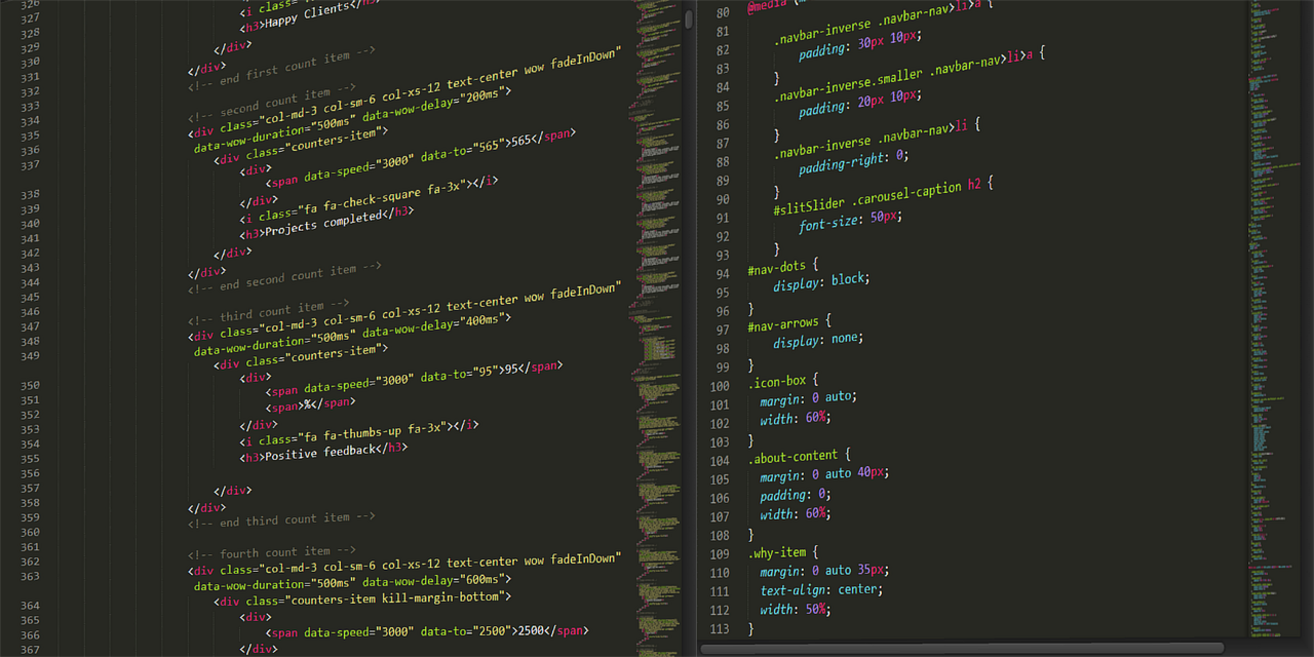
The Mobile-First Philosophy
Designing mobile-first means starting with the smallest screen and scaling up. Mobile-first design is the practice of building for limited space and bandwidth before enhancing for larger devices. The benefit? Ruthless prioritization. When you only have 320px of width, every headline, button, and image must earn its place (no room for decorative fluff).
Some argue it’s easier to design desktop first since you have more creative freedom. That’s fair. But excess space often hides poor hierarchy. Starting small forces clarity, which translates into cleaner desktop layouts.
Step-by-Step Process
- Single-column layout (mobile): Stack content vertically for readability and thumb-friendly navigation.
- Tablet breakpoint (~768px): Introduce two columns for balanced layouts and improved scanning.
- Desktop breakpoint (~1024px+): Expand to three or more columns, maximizing white space and advanced navigation.
This structured expansion ensures performance, accessibility, and consistency across devices—core principles in any responsive website layout tutorial.
Identifying Common Breakpoints
- 320px – Small phones
- 768px – Tablets
- 1024px – Small desktops
Pro tip: Let your content—not trendy device sizes—determine final breakpoints for optimal usability.
Beyond Layouts: Optimizing UX Across Devices
Designing for multiple screens isn’t just about shrinking elements—it’s about rethinking behavior. First, reconsider navigation. While the “hamburger” menu (the three-line icon that hides links) once ruled mobile, users now expect more visible options. When key pages drive conversions, keep them exposed in a bottom nav or sticky bar. In other words, don’t make people hunt.
Next, prioritize touch targets. Buttons and links should be at least 44×44 pixels, as recommended by Apple’s Human Interface Guidelines (Apple, 2023). Otherwise, users mis-tap—and leave (frustration travels fast). So increase padding and space out form fields.
Equally important, use scalable typography. Define sizes in rem (a unit relative to the root font size) and adjust line height at breakpoints to maintain readability. A responsive website layout tutorial can help you test these shifts.
Finally, optimize performance. Compress images and defer noncritical scripts—because mobile users on cellular networks won’t wait (Google, 2024). Pro tip: test on throttled speeds, not just Wi-Fi.
Build a Website That Works for Everyone, Everywhere
I still remember opening a client’s website on my phone and having to pinch, zoom, and squint just to read the headline (not exactly a great first impression). That moment made the problem obvious: single-screen design is obsolete in a multi-device world. As a result, traffic drops and users leave frustrated.
So what changed? I focused on three pillars: fluid grids (layouts that scale proportionally), flexible media (images and videos that resize within containers), and media queries (CSS rules that adapt to screen sizes).
Now, start your own responsive website layout tutorial: open your site on your phone and fix the first critical issue you see.
Take the Next Step Toward Smarter Web Design
You came here looking for clarity on how to build a site that adapts seamlessly across devices, and now you have the roadmap to make it happen. From understanding structure and breakpoints to implementing flexible grids and mobile-first strategies, you’re no longer guessing—you’re building with intention.
But here’s the real challenge: knowing the theory isn’t enough if your layout still breaks on smaller screens or loads slowly on mobile. A poorly optimized design costs you engagement, conversions, and credibility. That frustration of watching visitors leave because your site isn’t responsive? That ends here.
Now it’s time to take action. Revisit your current project and apply what you’ve learned in this responsive website layout tutorial. Audit your layout, test across devices, and refine until every interaction feels seamless.
If you’re serious about mastering modern web performance and staying ahead of evolving tech standards, dive deeper into advanced layout strategies and implementation guides today. Thousands of developers rely on our proven frameworks and expert tutorials to build faster, smarter, future-ready websites.
Don’t let outdated design hold you back. Start optimizing your layout now and create a web experience your users will love.
 Head of Machine Learning & Systems Architecture
Justin Huntecovil is the kind of writer who genuinely cannot publish something without checking it twice. Maybe three times. They came to digital device trends and strategies through years of hands-on work rather than theory, which means the things they writes about — Digital Device Trends and Strategies, Practical Tech Application Hacks, Innovation Alerts, among other areas — are things they has actually tested, questioned, and revised opinions on more than once.
That shows in the work. Justin's pieces tend to go a level deeper than most. Not in a way that becomes unreadable, but in a way that makes you realize you'd been missing something important. They has a habit of finding the detail that everybody else glosses over and making it the center of the story — which sounds simple, but takes a rare combination of curiosity and patience to pull off consistently. The writing never feels rushed. It feels like someone who sat with the subject long enough to actually understand it.
Outside of specific topics, what Justin cares about most is whether the reader walks away with something useful. Not impressed. Not entertained. Useful. That's a harder bar to clear than it sounds, and they clears it more often than not — which is why readers tend to remember Justin's articles long after they've forgotten the headline.
Head of Machine Learning & Systems Architecture
Justin Huntecovil is the kind of writer who genuinely cannot publish something without checking it twice. Maybe three times. They came to digital device trends and strategies through years of hands-on work rather than theory, which means the things they writes about — Digital Device Trends and Strategies, Practical Tech Application Hacks, Innovation Alerts, among other areas — are things they has actually tested, questioned, and revised opinions on more than once.
That shows in the work. Justin's pieces tend to go a level deeper than most. Not in a way that becomes unreadable, but in a way that makes you realize you'd been missing something important. They has a habit of finding the detail that everybody else glosses over and making it the center of the story — which sounds simple, but takes a rare combination of curiosity and patience to pull off consistently. The writing never feels rushed. It feels like someone who sat with the subject long enough to actually understand it.
Outside of specific topics, what Justin cares about most is whether the reader walks away with something useful. Not impressed. Not entertained. Useful. That's a harder bar to clear than it sounds, and they clears it more often than not — which is why readers tend to remember Justin's articles long after they've forgotten the headline.