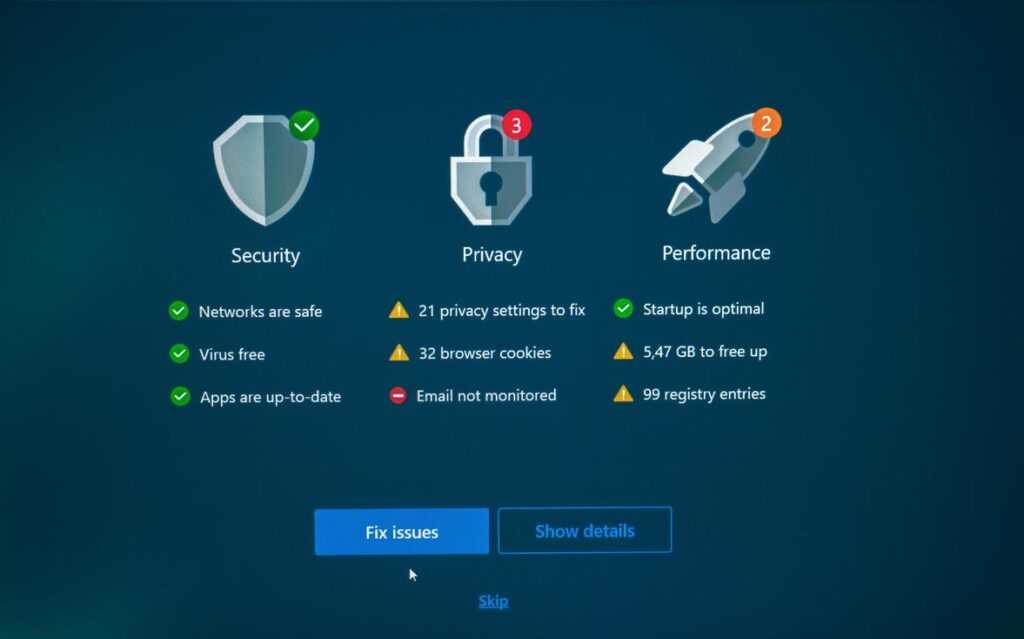

If you’re searching for a clear, practical guide to home network security setup, you’re likely concerned about protecting your devices, personal data, and smart home systems from growing cyber threats. With more connected devices than ever—laptops, smartphones, smart TVs, and IoT gadgets—your home network has become a prime target for attacks.
This article is designed to give you exactly what you need: a step-by-step understanding of how to secure your network, the core technologies involved, and the most common vulnerabilities to avoid. We break down complex concepts like router hardening, encryption standards, firewall configuration, and device segmentation into straightforward, actionable guidance.
To ensure accuracy and relevance, this guide draws on current cybersecurity best practices, industry research, and real-world threat analysis. By the end, you’ll know how to strengthen your defenses, reduce risk, and build a more resilient digital environment at home.
Your Digital Front Door: Why Securing Your Home Network is Non-Negotiable
Your Wi-Fi router is your home’s digital front door. If it’s unlocked, anyone nearby can try the handle. A home network security setup simply means configuring your router and devices so only approved users and traffic get in.
Common confusion: encryption, firewall, firmware.
- Encryption scrambles data so outsiders can’t read it.
- A firewall filters incoming and outgoing traffic.
- Firmware is the router’s built-in software.
Some argue strong passwords are enough. They’re not. Layers matter (think seatbelt and airbags). Start with WPA3, disable WPS, update firmware regularly.
The First Line of Defense: Locking Down Your Wi-Fi Router
Your router is the front door of your digital house. Yet many people leave it protected by the equivalent of a sticky note that says “admin/password.” That default login is publicly documented by manufacturers and widely known to attackers (yes, it’s that easy).
1. Change Default Router Credentials
First, log into your router (usually 192.168.0.1 or 192.168.1.1 in your browser).
- Locate Administration or System Settings.
- Change the admin username and password.
- Next, open Wireless Settings.
- Create a strong Wi‑Fi passphrase (at least 12–16 characters, mixing letters, numbers, and symbols).
Some argue strong passwords are overkill for a home network. However, automated “credential stuffing” attacks scan for defaults constantly (CISA, 2023). In a typical home network security setup, this single change blocks the easiest intrusion path.
2. Enable WPA3 Encryption
Encryption scrambles your data so outsiders can’t read it.
- WEP (Wired Equivalent Privacy): outdated and easily cracked (FBI warning, 2012).
- WPA2-AES: secure, still widely used.
- WPA3: strongest current standard, resists brute-force attacks (Wi‑Fi Alliance).
Navigate to Wireless Security and select WPA3-Personal. If unavailable, choose WPA2-AES only (not “mixed mode”).
3. Update Your Router’s Firmware
Firmware is your router’s internal software. Updates patch security flaws.
Go to Advanced > Firmware Update and click Check for Updates. Install any available version and reboot.
4. Disable Remote Administration & UPnP
Remote Administration allows external logins. UPnP automatically opens ports for devices. Convenient? Yes. Risky? Also yes.
Turn both off under Advanced Settings unless absolutely necessary. (Pro tip: if something breaks, re-enable selectively rather than leaving everything exposed.)
Creating a Digital Moat: The Power of Guest Networks
Creating a Digital Moat: The Power of Guest Networks
A guest network is an isolated Wi‑Fi access point that gives people internet access without letting them reach your primary devices like laptops, network drives, or printers. In other words, it builds a digital moat around your core systems (think of it as the castle wall in Game of Thrones).
This separation matters because many Internet‑connected devices—cameras, smart speakers, thermostats—are notoriously insecure. Manufacturers often skip long‑term updates, and default passwords remain unchanged. According to a 2023 report from Palo Alto Networks, IoT devices are frequent entry points for attackers. By placing them on a guest network, you contain any breach so it cannot spread to your main computers or files.
To set one up, log into your router’s admin panel, find the Guest Network section, and enable it. Then give it a unique SSID (network name) and a strong, separate password. As a pro tip, disable guest access to local network resources to complete your home network security setup.
Finally, share the guest password with visitors. Even if their phone is compromised, your trusted network stays off‑limits. It is a small change that dramatically reduces risk while keeping everyone conveniently connected. Security and convenience can coexist peacefully here.
Fortifying Your Devices: Security Beyond the Router
Most people assume a strong router equals total protection. It doesn’t. Your router is a gatekeeper, not a bodyguard. If malware slips through a phishing email or malicious download, your individual device becomes the battlefield.
Enable Software Firewalls
Both Windows Defender Firewall (Windows) and the built-in firewall on macOS filter incoming and outgoing traffic. A firewall is software that monitors network connections and blocks suspicious activity. Think of it as airport security for your laptop (and yes, sometimes it feels just as strict). Ensure it’s ON and configured to block unknown apps. This creates layered defense beyond your home network security setup.
Use Reputable Antivirus/Anti-Malware
Some argue modern operating systems make antivirus obsolete. That’s optimistic. Security software detects malware—malicious programs designed to steal data or damage systems—that routers simply can’t see. Keep it UPDATED and enable real-time scanning. Independent tests from AV-TEST consistently show top tools blocking over 99% of widespread threats (AV-TEST.org).
The Mandate for Updates
Updates patch exploits—known security weaknesses attackers actively target. Delaying updates because they’re “annoying” is risky. Apple and Microsoft routinely release patches addressing critical vulnerabilities (CISA.gov). Install updates for iOS, Android, Windows, browsers, and apps automatically whenever possible.
Secure Individual Device Settings
Disable unnecessary services like file sharing or remote desktop if unused. Fewer open services mean a smaller attack surface (the total number of possible entry points). Pro tip: audit startup programs quarterly.
Security isn’t about ONE big fix. It’s about SMALL, consistent hardening steps—much like maintaining performance with speed up your computer practical performance tweaks.
The Human Element: Smart Habits for a Safer Network
I once clicked a “delivery notice” email that looked perfect—and watched malware ripple through my home network security setup within minutes. That’s phishing: fraudulent messages designed to trick you into revealing data or installing malicious software (think of it as digital pickpocketing).
- Pause before you click. Verify senders and avoid unsolicited links or attachments.
- Use unique, complex passwords stored in a manager to stop credential stuffing—when hackers reuse leaked logins across sites.
- Secure your router physically. Keep it in a safe spot; access equals control.
Small habits, big protection. Stay vigilant.
Let’s be honest: few things are more frustrating than realizing your Wi‑Fi password is still the default sticker on the router. That’s how data breaches (unauthorized access to your private information) happen.
First, lock down the router. Then segment your network—meaning you split devices into separate lanes, like a guest network for visitors. After that, protect each device with updates and strong authentication (proof you are who you say you are).
This layered home network security setup turns chaos into control. Pro tip: schedule a quarterly firmware check. Ultimately, you’re no longer an easy target—you’re deliberately defended and privacy-conscious today.
Strengthen Your Digital Defenses Today
You set out to understand how to better protect your systems and devices—and now you have a clear path forward. From identifying vulnerabilities to applying smarter configurations and leveraging modern security tools, you’re equipped to take control instead of reacting to threats after the damage is done.
The reality is simple: cyber risks are growing more sophisticated, and a weak setup can expose everything from personal data to critical business assets. Ignoring gaps in your home network security setup or delaying updates can leave you vulnerable to attacks that are preventable with the right strategy.
Now it’s time to act. Audit your current environment, apply the security best practices you’ve learned, and implement stronger monitoring and encryption protocols immediately. Thousands of readers rely on our proven tech insights and practical frameworks to stay ahead of evolving threats.
Don’t wait for a breach to force your hand. Start strengthening your systems today and turn your security knowledge into real-world protection.
 Director of Content & Digital Strategy
Roxie Winlandanders writes the kind of practical tech application hacks content that people actually send to each other. Not because it's flashy or controversial, but because it's the sort of thing where you read it and immediately think of three people who need to see it. Roxie has a talent for identifying the questions that a lot of people have but haven't quite figured out how to articulate yet — and then answering them properly.
They covers a lot of ground: Practical Tech Application Hacks, Expert Tutorials, Core Tech Concepts and Breakdowns, and plenty of adjacent territory that doesn't always get treated with the same seriousness. The consistency across all of it is a certain kind of respect for the reader. Roxie doesn't assume people are stupid, and they doesn't assume they know everything either. They writes for someone who is genuinely trying to figure something out — because that's usually who's actually reading. That assumption shapes everything from how they structures an explanation to how much background they includes before getting to the point.
Beyond the practical stuff, there's something in Roxie's writing that reflects a real investment in the subject — not performed enthusiasm, but the kind of sustained interest that produces insight over time. They has been paying attention to practical tech application hacks long enough that they notices things a more casual observer would miss. That depth shows up in the work in ways that are hard to fake.
Director of Content & Digital Strategy
Roxie Winlandanders writes the kind of practical tech application hacks content that people actually send to each other. Not because it's flashy or controversial, but because it's the sort of thing where you read it and immediately think of three people who need to see it. Roxie has a talent for identifying the questions that a lot of people have but haven't quite figured out how to articulate yet — and then answering them properly.
They covers a lot of ground: Practical Tech Application Hacks, Expert Tutorials, Core Tech Concepts and Breakdowns, and plenty of adjacent territory that doesn't always get treated with the same seriousness. The consistency across all of it is a certain kind of respect for the reader. Roxie doesn't assume people are stupid, and they doesn't assume they know everything either. They writes for someone who is genuinely trying to figure something out — because that's usually who's actually reading. That assumption shapes everything from how they structures an explanation to how much background they includes before getting to the point.
Beyond the practical stuff, there's something in Roxie's writing that reflects a real investment in the subject — not performed enthusiasm, but the kind of sustained interest that produces insight over time. They has been paying attention to practical tech application hacks long enough that they notices things a more casual observer would miss. That depth shows up in the work in ways that are hard to fake.