A default Linux installation is a prime target for automated scans, brute-force attempts, and opportunistic exploits. If you’re deploying a new machine, leaving it in its out-of-the-box state is not an option. This secure linux server setup guide gives you a practical, step-by-step checklist to lock down your system fast. We focus only on high-impact configurations—from tightening SSH access to enabling firewalls and automated updates—so you get maximum protection for minimal time invested. Follow along to transform a vulnerable default server into a hardened, production-ready environment built to withstand real-world threats.
Establishing Secure User Access and Privileges
Setting up a new server without locking down access is like buying a house and leaving the front door wide open (with a neon “Free Stuff” sign). Let’s fix that.
-
Create a Non-Root User: The very first command you run should create a standard user for daily tasks. The root account has unrestricted control over the entire system—meaning one typo or breach can cause catastrophic damage. A non-root account limits the blast radius if credentials are compromised.
-
Grant Sudo Privileges: Add your new user to the
sudoorwheelgroup. Sudo (short for “superuser do”) lets approved users run administrative commands temporarily. It’s like borrowing the master key instead of carrying it everywhere (much safer, less dramatic). -
Disable Root Login: Edit
/etc/ssh/sshd_configand setPermitRootLogin no. This blocks direct root access over SSH, cutting off the primary target for brute-force attacks (hackers love predictable targets). -
Enforce Strong Passwords: Even if you plan to use SSH keys, start with a complex password. Use a password manager to generate and store it securely.
If you’re following a secure linux server setup guide, these steps form your foundation. Skip them, and you’re basically speedrunning regret.
Building Your Digital Fortress: Firewall Configuration with UFW
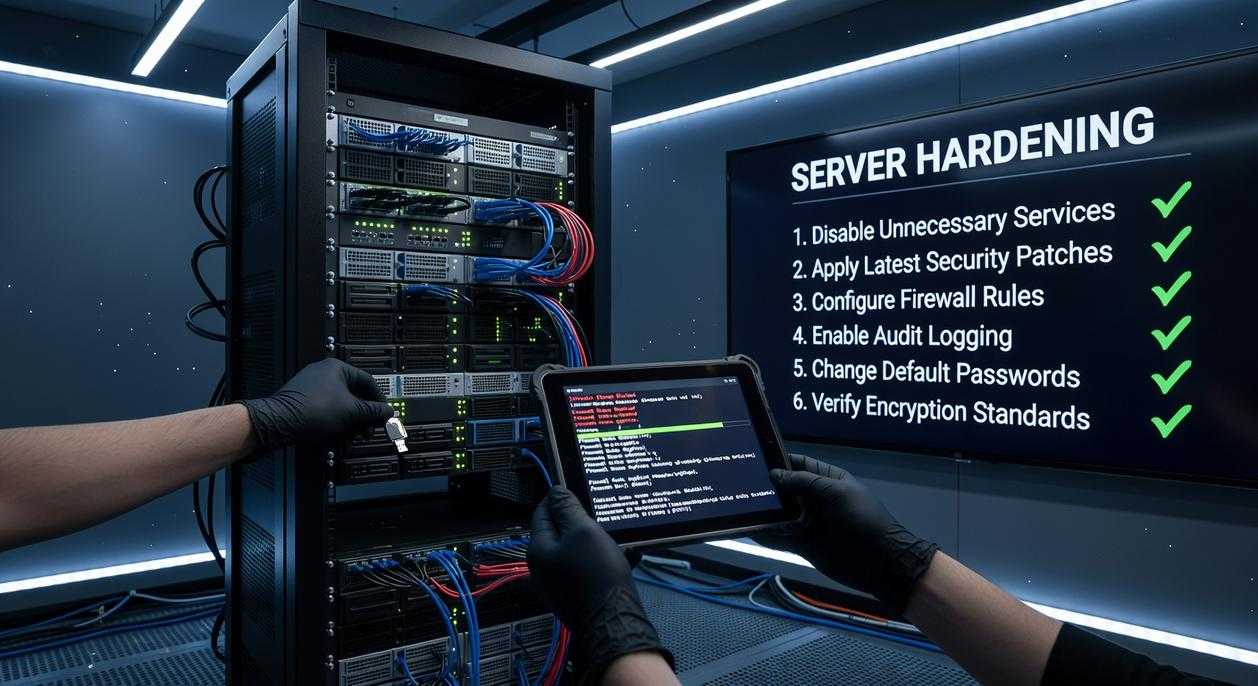
A firewall is your server’s gatekeeper—the system that decides what traffic gets in or stays out. The golden rule here is “default deny.” In simple terms, that means blocking everything unless you explicitly allow it. It sounds strict (and it is), but that’s the point.
Step 1: Set Default Policies
First, install UFW if it’s not already present. Then set your baseline rules:
sudo ufw default deny incomingsudo ufw default allow outgoing
This ensures your server can fetch updates or external data, while outsiders can’t initiate connections. In other words, your server can speak—but strangers can’t shout at it.
Step 2: Allow Essential Services
Before enabling UFW, allow SSH—or you risk locking yourself out (yes, it happens more often than you’d think).
sudo ufw allow 22/tcp
If you use a custom SSH port, replace 22 accordingly.
Next, open web traffic if needed:
sudo ufw allow 80/tcpsudo ufw allow 443/tcp
For example, a typical web server running Nginx will require both ports for HTTP and HTTPS traffic.
Step 3: Enable and Verify
Now enable the firewall:
sudo ufw enable
Then confirm everything:
sudo ufw status verbose
As a practical tip, document your rules as part of your secure linux server setup guide so future updates don’t accidentally expose services. Configuration without verification is just wishful thinking.
Hardening Your Remote Gateway: Advanced SSH Security
Most guides repeat the same checklist for SSH hardening. Good advice—but often incomplete. Let’s challenge a few assumptions while locking things down properly.
Change the Default SSH Port
Yes, moving from port 22 to something like 2222 reduces automated bot noise. But let’s be clear: this is security through obscurity. It won’t stop a targeted scan (tools like Nmap can sweep all 65,535 ports in minutes). What it does do is reduce log clutter and brute-force spam. Edit /etc/ssh/sshd_config, set a new Port, and document it in your secure linux server setup guide.
Implement Key-Based Authentication
Passwords are vulnerable to brute force and credential stuffing (Verizon DBIR consistently reports credential abuse as a top breach vector). Generate keys with ssh-keygen, then copy the public key into ~/.ssh/authorized_keys.
Disable Password Authentication
Once keys work, set PasswordAuthentication no. Some argue keeping passwords as backup is safer. I disagree. Backups become backdoors.
- Use strong key lengths (ed25519 preferred)
- Restrict root login (
PermitRootLogin no) - Limit users with
AllowUsers
Finally, restart SSH: sudo systemctl restart sshd. Test in a new terminal first (future you will be grateful).
For deeper technical workflows, review how to create data visualizations with python for secure data analysis pipelines.
Maintaining Vigilance: Automated Updates and Software Audits
I learned this the hard way. Years ago, I delayed a routine patch on a staging server. “It can wait,” I thought. It couldn’t. A known vulnerability (a publicly disclosed security flaw with available fixes) was exploited within days. That experience reshaped how I approach maintenance.
Configure Automatic Security Updates
An unpatched vulnerability is an open door. Install and configure the unattended-upgrades package so critical patches apply automatically—no late-night scrambling required. Pro tip: enable email notifications so you still see what changes.
Reduce the Attack Surface
Your attack surface (all possible entry points into a system) grows with every installed package. Audit regularly.
- Run
ss -tulnto list listening services - Remove unused packages
- Disable unnecessary daemons
If you don’t recognize a service, investigate or remove it. Following a secure linux server setup guide helps, but vigilance is ongoing. Servers don’t stay secure by accident (I wish they did).
Proactive Defense: Implementing Fail2Ban for Intrusion Prevention
Automated Log Monitoring means Fail2Ban scans logs like SSH and bans IPs after repeated failed logins (think of it as a bouncer for your server).
Simple Configuration starts with creating a jail.local file to enable SSH protection; set maxretry and bantime to control lockouts.
Verify Operation using sudo fail2ban-client status sshd to view banned IPs.
What’s next? Integrate alerts, tune recidive jails, and align settings with your secure linux server setup guide so protection scales as traffic grows. Consider testing with staged attacks to confirm thresholds work without blocking real users. Stay vigilant.
Security as a Process, Not a Project
You set out to build a hardened foundation—and now your server has controlled access, firewall protection, secure remote login, and automated updates in place. But threats evolve daily, and so must you. Keep refining your secure linux server setup guide with regular audits and log reviews. Don’t wait for a breach—strengthen your defenses now with proven, expert-backed strategies trusted by thousands of admins worldwide.
 Founder & Chief Executive Officer (CEO)
Velrona Durnhanna writes the kind of llusyep machine learning frameworks content that people actually send to each other. Not because it's flashy or controversial, but because it's the sort of thing where you read it and immediately think of three people who need to see it. Velrona has a talent for identifying the questions that a lot of people have but haven't quite figured out how to articulate yet — and then answering them properly.
They covers a lot of ground: Llusyep Machine Learning Frameworks, Innovation Alerts, Core Tech Concepts and Breakdowns, and plenty of adjacent territory that doesn't always get treated with the same seriousness. The consistency across all of it is a certain kind of respect for the reader. Velrona doesn't assume people are stupid, and they doesn't assume they know everything either. They writes for someone who is genuinely trying to figure something out — because that's usually who's actually reading. That assumption shapes everything from how they structures an explanation to how much background they includes before getting to the point.
Beyond the practical stuff, there's something in Velrona's writing that reflects a real investment in the subject — not performed enthusiasm, but the kind of sustained interest that produces insight over time. They has been paying attention to llusyep machine learning frameworks long enough that they notices things a more casual observer would miss. That depth shows up in the work in ways that are hard to fake.
Founder & Chief Executive Officer (CEO)
Velrona Durnhanna writes the kind of llusyep machine learning frameworks content that people actually send to each other. Not because it's flashy or controversial, but because it's the sort of thing where you read it and immediately think of three people who need to see it. Velrona has a talent for identifying the questions that a lot of people have but haven't quite figured out how to articulate yet — and then answering them properly.
They covers a lot of ground: Llusyep Machine Learning Frameworks, Innovation Alerts, Core Tech Concepts and Breakdowns, and plenty of adjacent territory that doesn't always get treated with the same seriousness. The consistency across all of it is a certain kind of respect for the reader. Velrona doesn't assume people are stupid, and they doesn't assume they know everything either. They writes for someone who is genuinely trying to figure something out — because that's usually who's actually reading. That assumption shapes everything from how they structures an explanation to how much background they includes before getting to the point.
Beyond the practical stuff, there's something in Velrona's writing that reflects a real investment in the subject — not performed enthusiasm, but the kind of sustained interest that produces insight over time. They has been paying attention to llusyep machine learning frameworks long enough that they notices things a more casual observer would miss. That depth shows up in the work in ways that are hard to fake.